
Windows install support
Set up Froppy's local AI
Froppy needs its managed local AI runtime and Qwen GGUF model for generated pet chat. This page explains the expected setup path and the most common install problems.
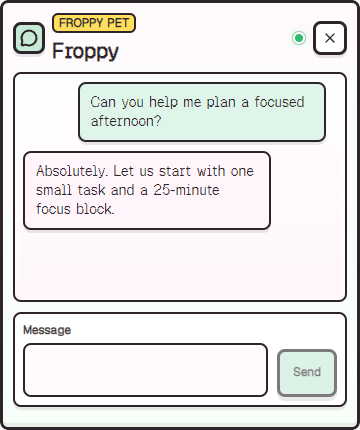
Expected setup path
On a normal online setup, Froppy installs quickly first, then guides local AI setup from onboarding or Settings > AI.
- Run the Windows installer.
- Complete first-run onboarding.
- Start managed local AI setup from Froppy and continue in Basic Pet Mode while it runs.
- Open Settings and check that local AI readiness is green.
If local AI is unavailable
Froppy should surface local AI setup errors clearly rather than silently pretending generated AI is ready.
- Use the setup card retry or local AI setup action when available.
- Keep Froppy open while the runtime and model download.
- Restart Froppy if setup completes but readiness does not turn green.
- Generated chat remains unavailable until setup is complete.
Network and security warnings
Preview releases may still show Windows trust prompts until trusted signing is chosen. Slow or blocked networks can also interrupt the model download.
- Allow enough time for the model download on slower connections.
- Retry setup if a firewall or proxy blocked the download.
- Record installer failures in release QA before broad sharing.
At a glance
Froppy page topics
- Froppy Pet local AI setup
- llama.cpp Windows installer help
- Qwen GGUF setup
- local AI desktop pet troubleshooting
Quick answers
Common questions
What model does Froppy Pet install?
The current Windows preview uses Qwen2.5 1.5B Instruct GGUF Q4_K_M through llama.cpp.
Can I install without setting up local AI immediately?
Yes. Froppy installs quickly and can run Basic Pet Mode while the managed local AI setup downloads in the background after launch.
Next steps